
Bulk upload posts from a CSV
For batch content — a month of posts, a backlog of clips, or a queue you're importing from another tool — bulk upload lets you schedule up to 100 posts from a single CSV. Every row is previewed and validated before anything is scheduled, so you fix mistakes up front instead of hunting for failed posts later.
Where to find it
Go to Posts and click Bulk upload (next to New Post). Drop in your CSV, review the preview, and schedule. The dialog also has a Download template link so you can start from a valid file.
CSV format
Your CSV needs a header row. Column names are case-insensitive.
| Column | Required | Notes |
|---|---|---|
content | Yes | The post text (up to 5,000 characters). Wrap it in quotes if it contains commas or line breaks. |
scheduled_at | Yes | When to post. Either a full ISO-8601 timestamp (e.g. 2026-09-16T14:30:00Z) or a plain YYYY-MM-DD HH:mm (e.g. 2026-09-16 14:30). |
platforms | Yes | Comma-separated platform slugs — twitter, bluesky, linkedin, instagram, tiktok, facebook, youtube, pinterest, threads, mastodon. Each platform schedules to every connected account you have on it. |
media_urls | No | Comma-separated public image or video URLs. Each is imported into your media library. A URL that can't be fetched fails just that row. |
tags | No | Comma-separated tag names that already exist in your workspace. Unknown tags are skipped (the post still schedules). |
A note on times and timezones
A plain YYYY-MM-DD HH:mm time is read in each account's own timezone, so 2026-09-16 09:00 posts at 9am local for every channel it targets. If you'd rather pin an exact instant regardless of timezone, use an ISO-8601 time with an offset or Z (e.g. 2026-09-16T14:30:00Z). See Timezones and your posting schedule.
Example
content,scheduled_at,platforms,media_urls,tags
"Launch day is here 🚀",2026-09-15 09:00,"twitter,bluesky",,launch
"Behind the scenes of the build",2026-09-16T14:30:00Z,linkedin,https://cdn.example.com/bts.jpg,"launch,promo"
How the preview works
When you upload, Schedulin parses every row and shows a preview table:
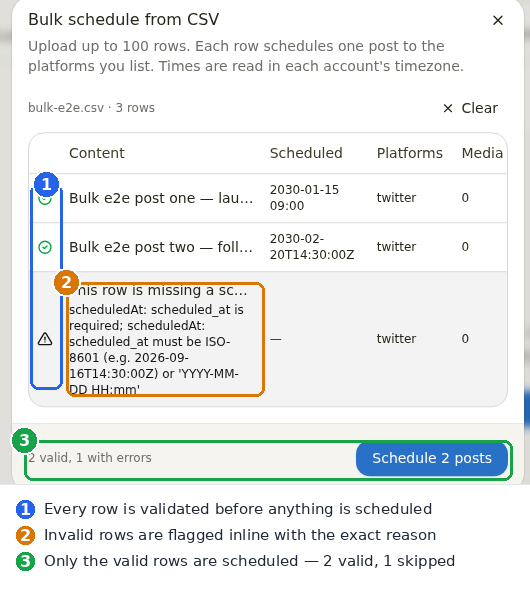
- Every row is validated — a green check means it's ready; a warning means it isn't.
- Invalid rows are flagged inline with the exact reason (missing time, unknown platform, a caption that's too long), so you can fix and re-upload.
- Only the valid rows are scheduled. The footer shows how many will go — "2 valid, 1 with errors."
Click Schedule, and you get a per-row summary of what happened:
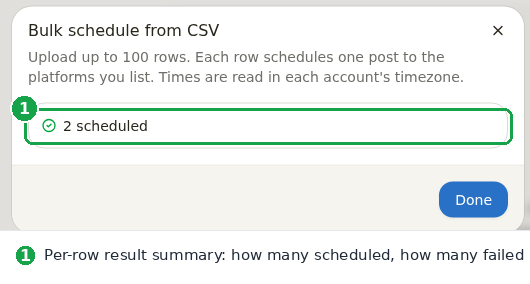
Because rows are processed independently, one bad row never blocks the rest — you'll see something like "87 scheduled, 3 failed," with the reason for each failure.
Limits & good to know
- 100 rows per upload.
- Posts are created as scheduled posts (not drafts) — they'll appear on your posts list and publish at their times.
- Unlimited posts on every plan — bulk upload doesn't count against a monthly cap. You do need an active plan and at least one connected channel.
- Media URLs must be public (no login wall). Use a CDN link (S3, Cloudflare R2, Bunny) rather than a personal cloud-share link.
Migrating from another tool?
Bulk upload is the fastest way to bring a queue over from another scheduler. Export your posts, map the columns to the format above, and upload. See Migrating from another scheduler.