
Notifications
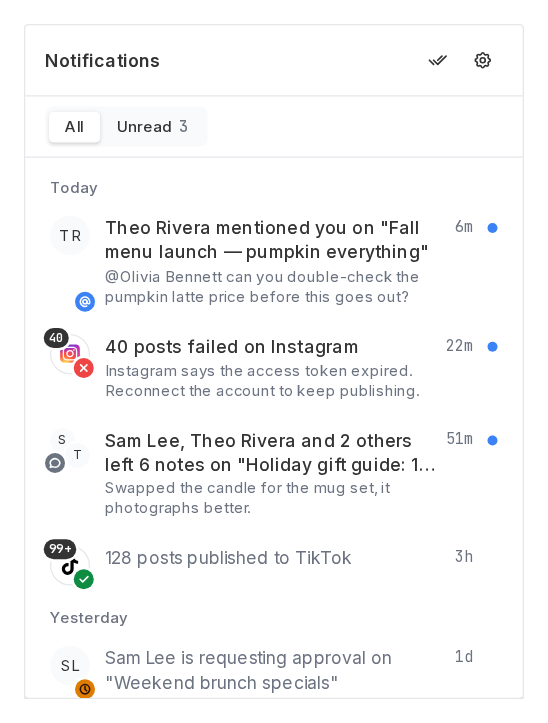
The bell in the top right of the app (in the header on mobile) shows what happened while you were away: mentions, notes, approvals, publishing results, and feedback updates. It updates live, so new notifications appear without refreshing the page.
What notifies you
| Category | You're notified when |
|---|---|
| Publishing results | One of your posts publishes, or fails to publish (with the reason) |
| Mentions and notes | A teammate @mentions you in a post's notes, or leaves a note on a post you created or added notes to |
| Approvals | A teammate asks you to approve a post, or a post you submitted is approved or sent back with changes |
| Feedback | Someone replies to, comments on, or @mentions you on a feature request, or a request you follow changes status |
| Product updates | A feature request you voted on ships |
You're never notified about your own actions. Notifications from every workspace you belong to show in the same bell.
Grouped notifications
To keep busy accounts readable, related notifications group into one row that updates as more come in, and moves back to the top:
- Published posts group per channel per day: "128 posts published to Instagram".
- Failed posts group per channel and reason: "40 posts failed on Instagram", showing the latest reason. A group stays open while failures keep coming; after a day with no new failure, the next one starts a new row.
- Notes on a post group per post: "Theo, Sam and 2 others left 6 notes on …".
- Comments on a feature request group per request.
@mentions, approval requests, approvals and changes requested never group, so a direct ask always has its own row.
Once you open (click) a grouped notification, the next event starts a new row.
Reading notifications
- The badge counts new notifications since you last opened the bell. Opening the bell clears it.
- Unread notifications stay highlighted (with a blue dot) until you click them. The Unread tab shows only those.
- Click a notification to open what it's about:
- a mention, note or approval opens the post, scrolled to that note
- a single published or failed post opens the post
- a group of published or failed posts opens that channel's Sent or Failed list
- feedback notifications open the request on the feedback board in a new tab
- product updates open that entry in the changelog in a new tab
- If the post is in a different workspace, Schedulin switches to that workspace first.
- Mark as read without opening: hover a notification and click the check, or click Mark all as read (the double check at the top of the bell).
- Reading a post's notes counts. Opening a post's notes marks that post's note notifications read.
Turning categories off
Go to Settings → Notifications (or click the gear at the top of the bell). Under In the bell, switch off any category you don't want to see. Everything is on by default.
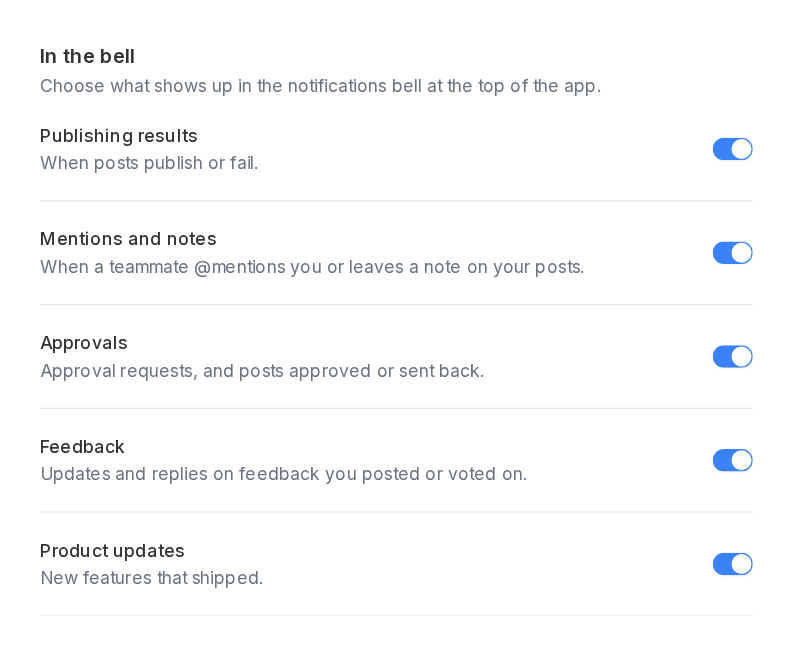
These switches only affect the bell. Emails have their own switches under Email on the same page; see Email notifications.
History
Read notifications are kept for 30 days, and the bell keeps your most recent 500.